Application List
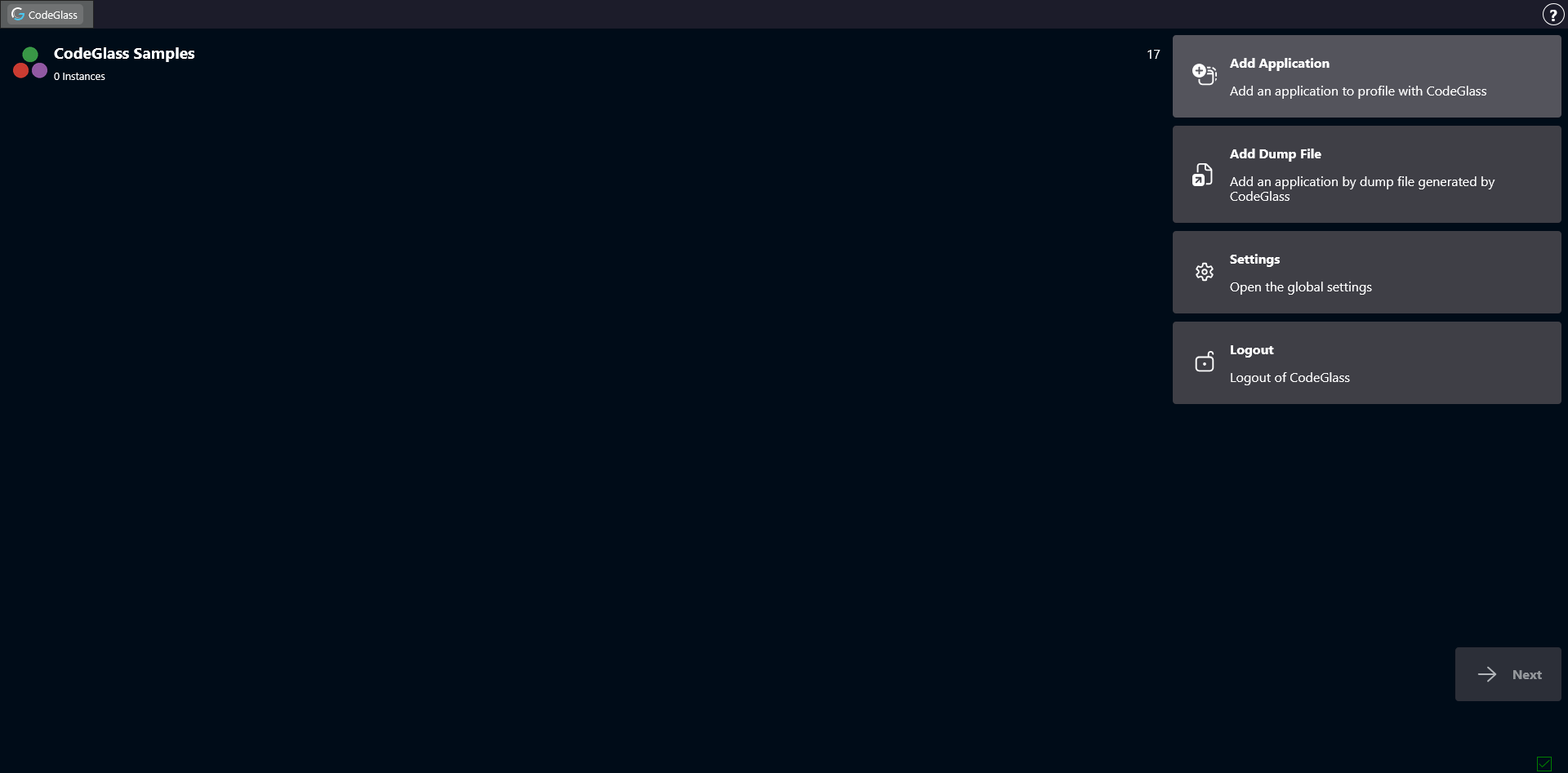
After logging in, you arrive at the Application List screen. From here you can add applications or open existing ones.
In CodeGlass, an application is a configuration template. It allows you to define settings and group related instances of that application together.
On the left side of the screen you will find a list of all your applications.
Double-clicking an application opens the Application Instance List page for that application.
Sidebar
On the right side of the screen there is a sidebar with several buttons.
Add Application
Clicking Add Application opens a short setup guide that helps you add a new application.
The first step is to select the type of application you want to create.
Currently limited to Julia, see intro for more information.
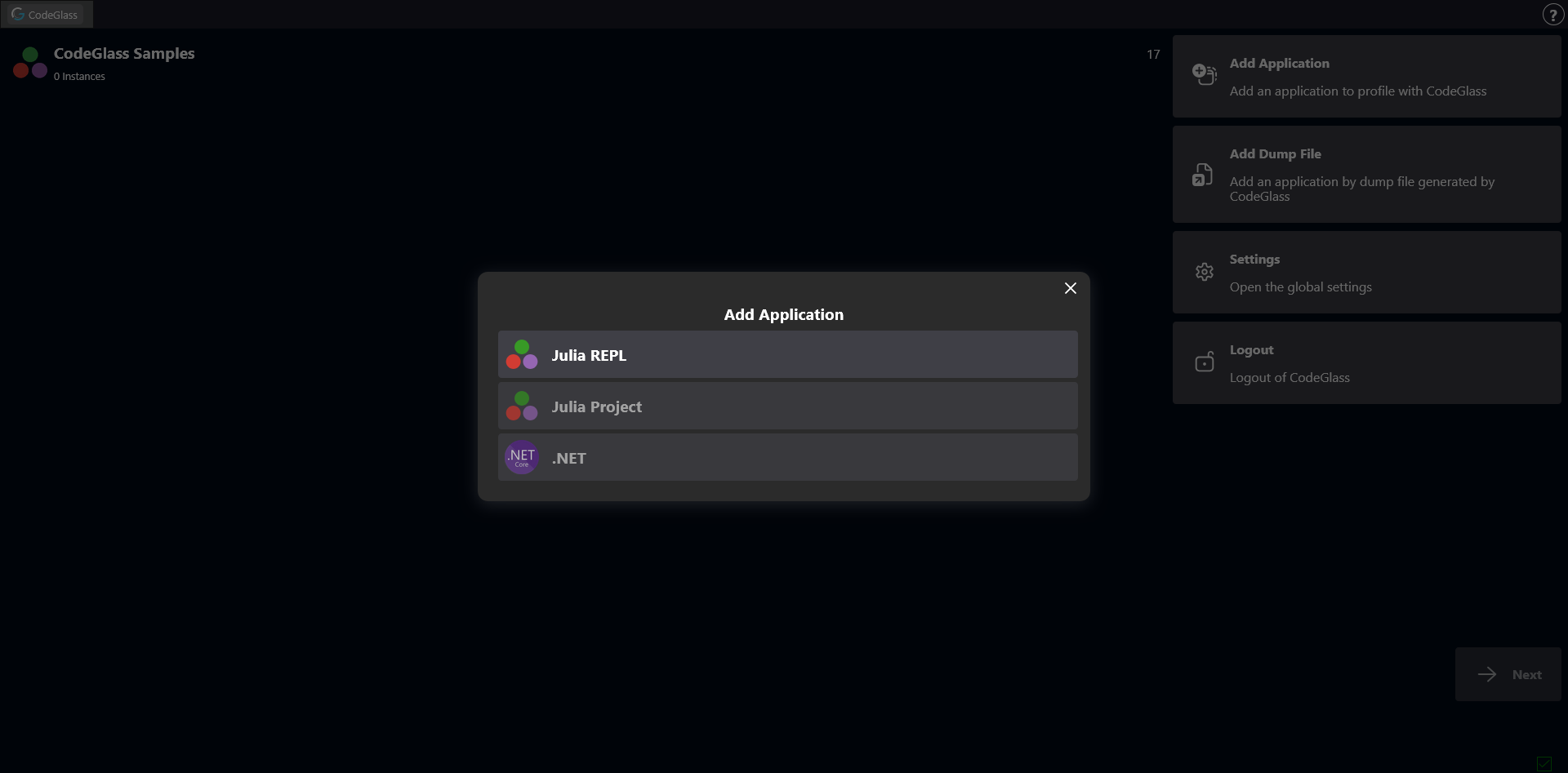
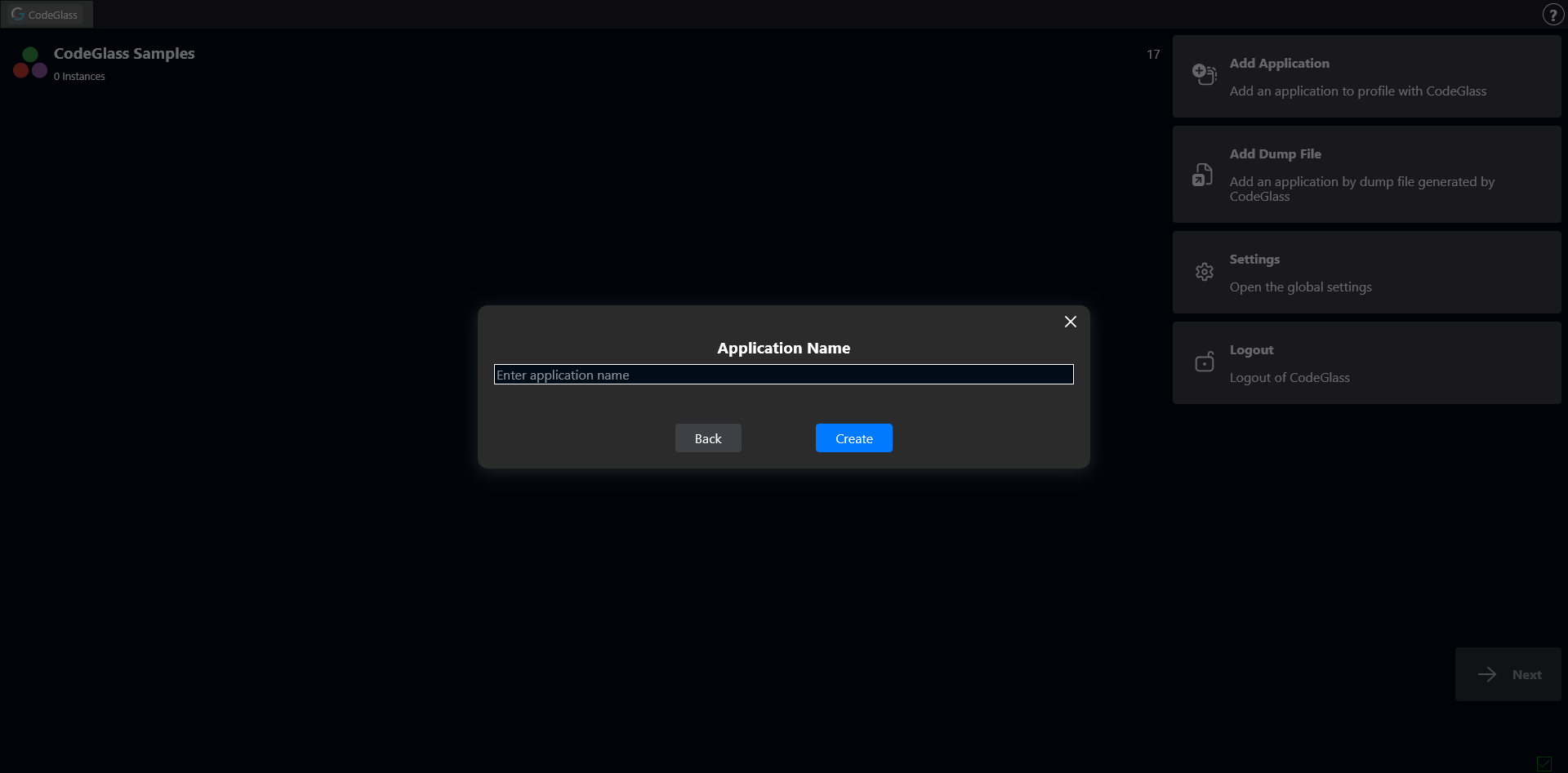
After selecting the application type, enter a name for the application and press the Create button.
This will create the new application and add it to your application list.
If you have selected Julia Project, you will also have to enter the full path to the Project.toml.
Add Dump Files
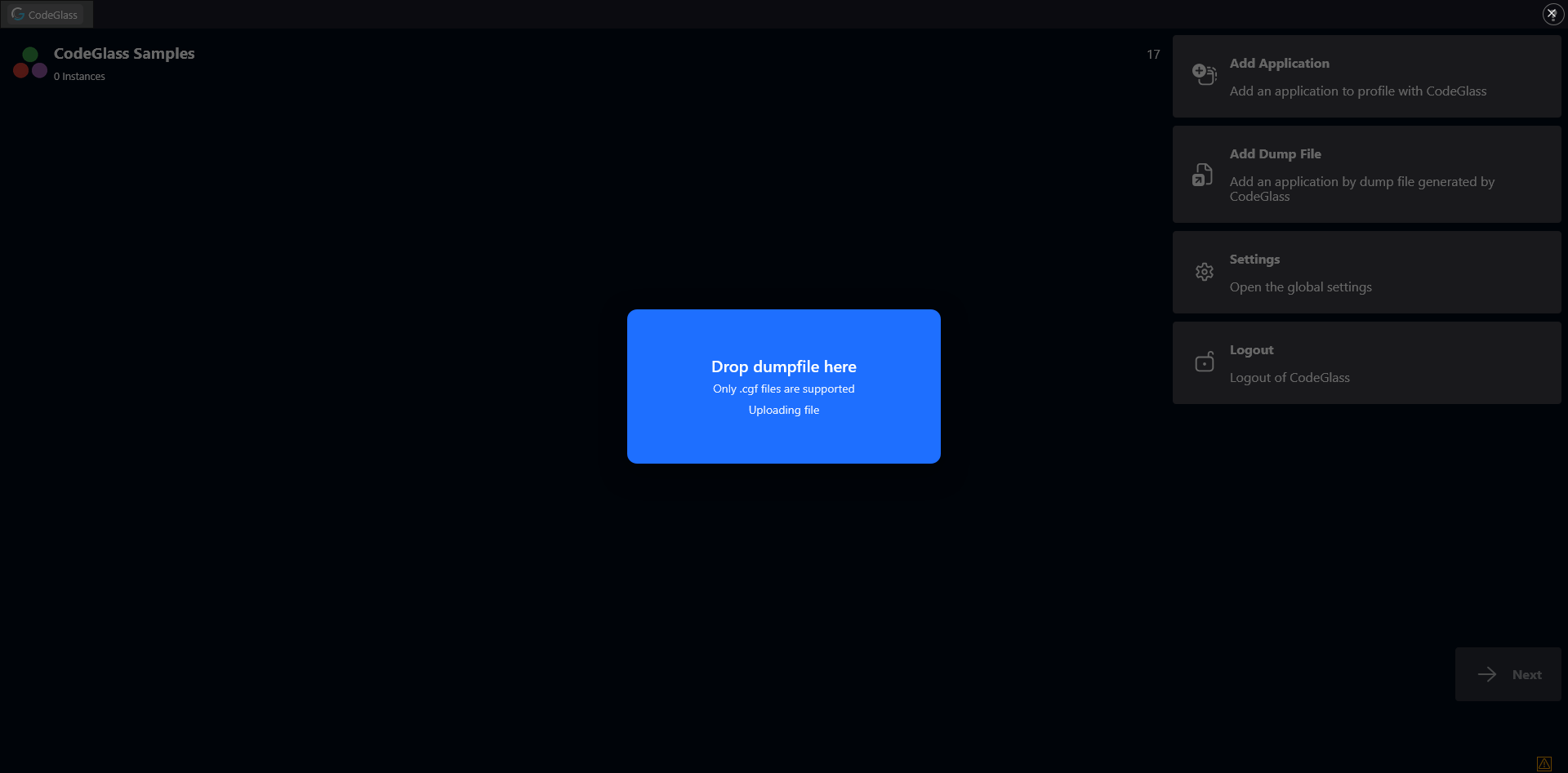
CodeGlass can export all collected profiling data into dump file.
You can upload these dump files by clicking this button.
Dump files can also be uploaded by dragging and dropping them onto any page in the Client.
Settings
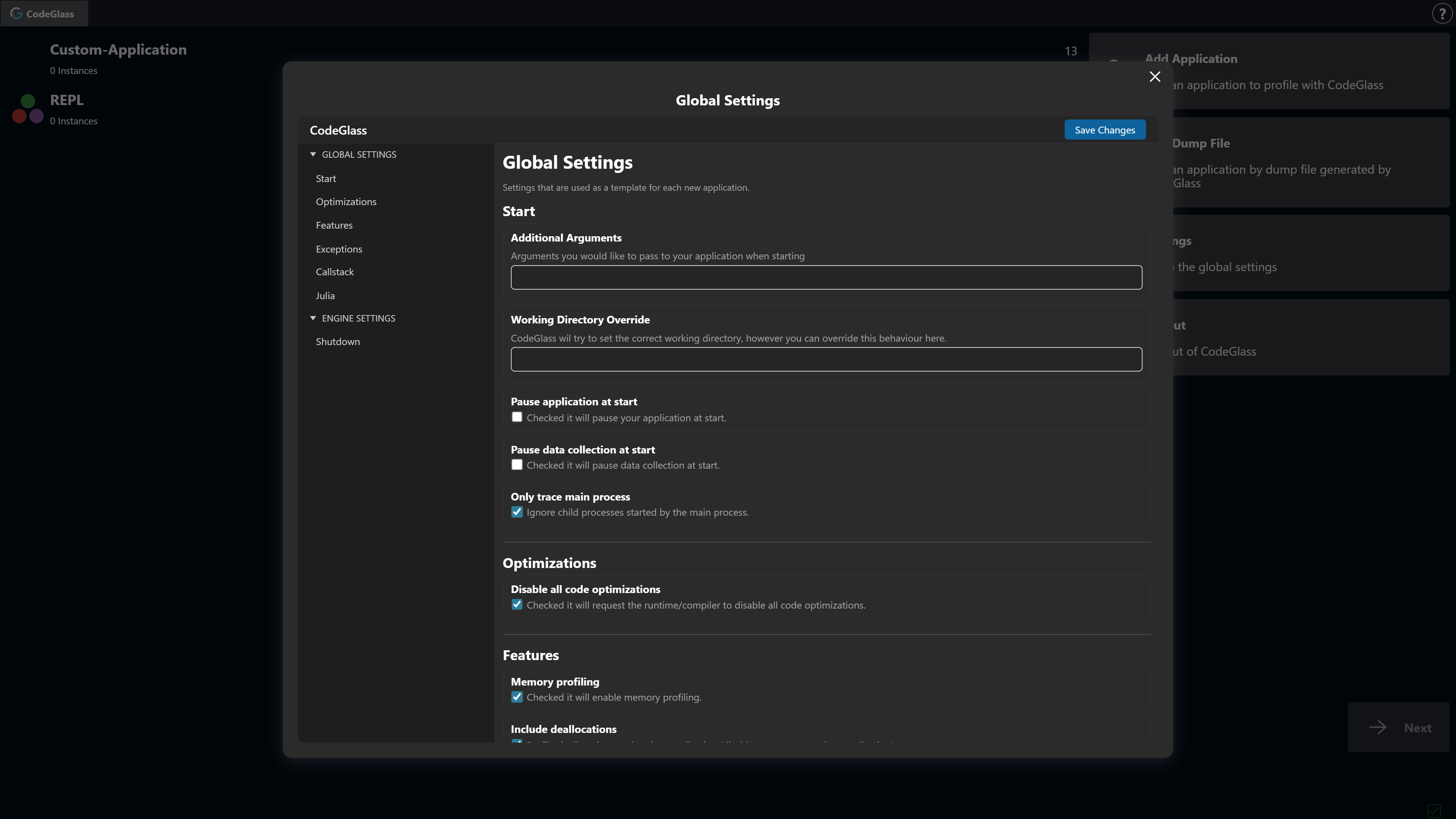
The Settings page will allow you to configure global CodeGlass settings.
These settings act as a template for new applications. When a new application is created, it receives a copy of the settings defined here.
Logout
Clicking Logout signs you out of CodeGlass and redirects you to the login page.